
How to Pre-Sort DSLR RAW Files for Siril Stacking in Under 60 Seconds
Siril's automated stacking scripts need four strict subdirectories: /lights, /darks, /flats, and /biases. Here is how to stop squinting at identical-looking black thumbnails at 2:00 AM and sort a full night's shoot in under a minute.
It is 2:30 AM. You just dragged yourself inside from a freezing field, hands numb, tripod frozen, and your star tracker packed back into its case. You plug your SD card into your card reader, open your file manager, and stare at 450 uncompressed RAW files.
Every single thumbnail looks like an identical square of pitch black.
If your processing pipeline runs through Siril (easily the best free, open-source astrophotography pre-processing software available today), you already know the bottleneck. Siril’s automated scripts (such as OSC_Preprocessing or OSC_Preprocessing_WithoutFlat) are incredible time-savers, but they require one strict, non-negotiable folder structure:
working_directory/
├── lights/   (Your deep sky exposures: e.g. 60s @ ISO 800)
├── darks/    (Same shutter speed & ISO, lens cap ON)
├── flats/    (Evenly illuminated white panel: e.g. 1/20s @ ISO 800)
└── biases/   (Fastest possible shutter: e.g. 1/4000s @ ISO 800)
If even one dark frame ends up inside your /lights folder, Siril's background normalization fails. If you accidentally put flats into biases, the entire master calibration stack is ruined.
Why Manual Sorting Fails at 2:00 AM
Most DSLR astrophotographers sort files by clicking through Windows Explorer or Finder, sorting by "Date Modified," opening file properties to check shutter speeds, and dragging files into manually created folders.
In practice, this method has three major vulnerabilities:
Unstretched astrophotography RAW files look like pure pitch black in file explorer thumbnails. A 60-second light frame looks identical to a 60-second dark frame or a 1/4000-second bias frame.
If you shot multiple targets or interrupted your dark frame sequence, timestamps jump unpredictably. A single dark frame misplaced into lights ruins star alignment and causes calibration errors.
Manually selecting 300+ files and inspecting properties takes 15–30 minutes of tedious manual labor after hours of freezing out in the cold.
The Solution: Visual 2D Coordinate Clustering
Instead of reading raw file names, think about how calibration frames actually behave in physics:
- Flats: High frame luminance (sensor exposed to light panel), very short exposure.
- Lights: Low-to-moderate luminance (dark night sky), long exposure duration (30s–180s).
- Darks: Zero light luminance (lens cap on), long exposure duration identical to lights.
- Biases: Zero light luminance, fastest shutter speed possible (1/4000s or 1/8000s).
When you plot every file on a 2D coordinate space—where the X-axis is Exposure Duration (seconds) and the Y-axis is Mean Luminance (%)—your shoot naturally groups into four unmistakable, separated clusters:
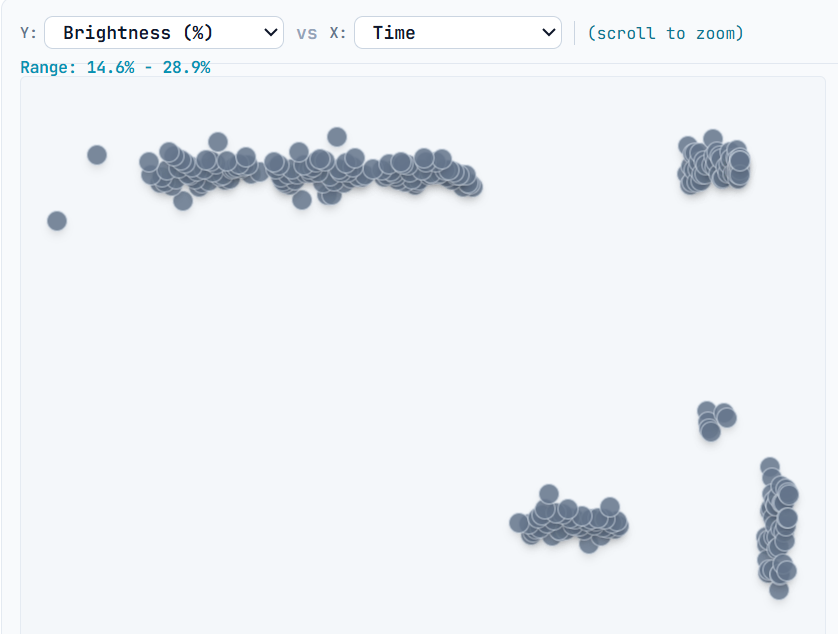
Because physical exposure parameters differ drastically between calibration sets, you never need to guess which black thumbnail is which. The clusters separate cleanly on the graph.
Step-by-Step Workflow with AstroPlot RAW
We built AstroPlot RAW to make this process instantaneous. It reads raw EXIF metadata directly in parallel across all CPU cores without full debayering:
1. Drop Your SD Card Folder
Drag and drop your raw shoot directory directly onto AstroPlot RAW. The app parses 500+ RAW files in 2 to 3 seconds and plots them on the canvas.
2. Marquee-Select & Tag Each Cluster
Click and drag a box over each cluster, then press the hotkey to assign the category:
- Press L to tag as
Lights - Press D to tag as
Darks - Press F to tag as
Flats - Press B to tag as
Biases
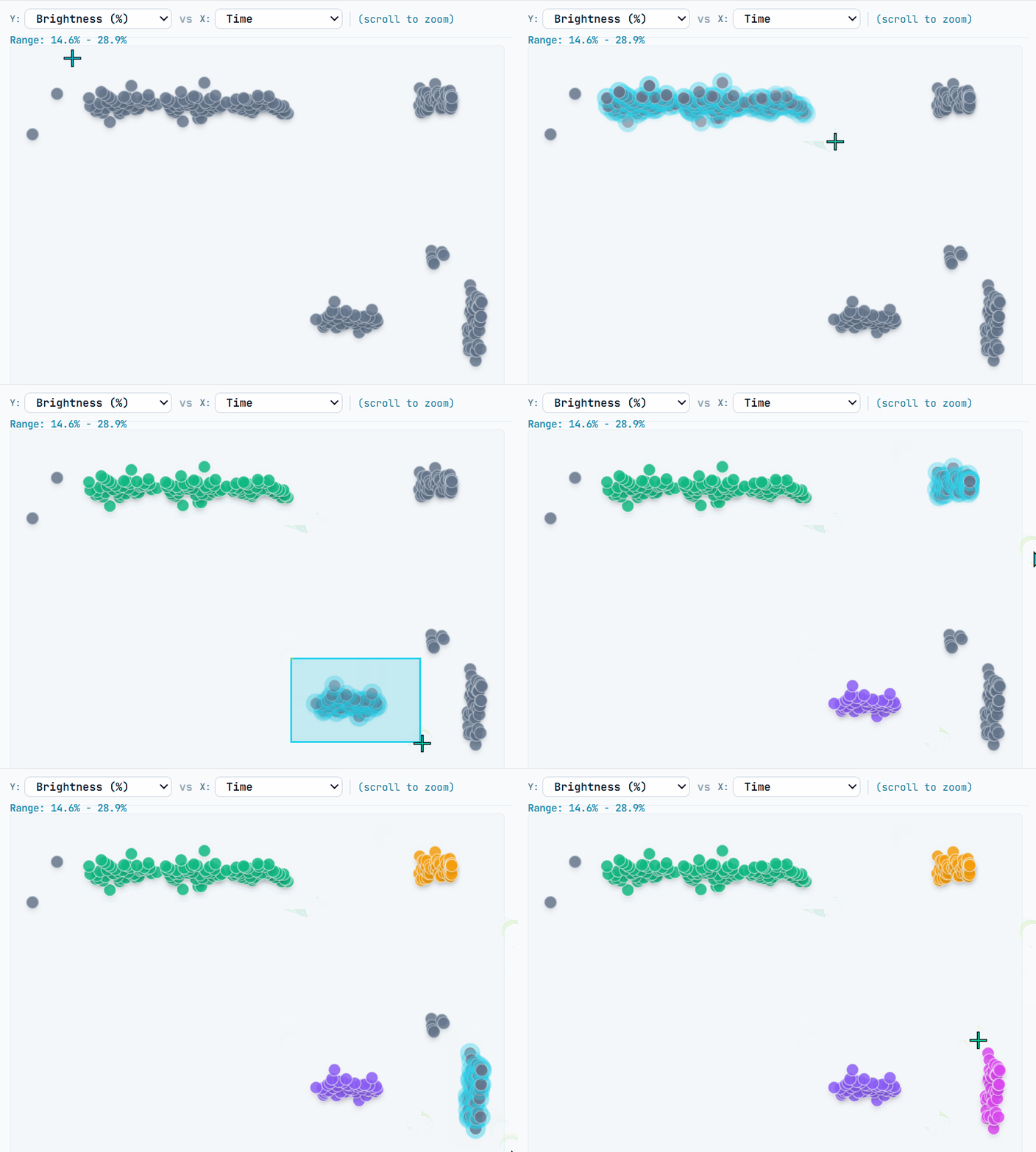
Marquee select any cluster with your mouse and tap L, D, F, or B. Colors change instantly to confirm assignment.
3. Click "Organize"
Choose whether to Copy or Move files, select your target working folder, and click Organize. AstroPlot RAW automatically generates the standard Siril subdirectories and places every file into its proper location.
Running Siril's OSC_Preprocessing Script
Now that your files are neatly organized in under 60 seconds, launching your stack in Siril takes just four clicks:
- Open Siril.
- Click the Home icon at the top toolbar and set your working directory to the folder created by AstroPlot RAW.
- Click Scripts → OSC_Preprocessing (or OSC_Preprocessing_WithoutFlat if you didn't shoot flats).
- Walk away and go to sleep. Siril will build your master darks, master biases, master flats, debayer, register, normalize, and produce your final stacked
result.fitcompletely unattended.
One universal license key unlocks AstroPlot RAW on both Windows and macOS. 100% offline & private.
Tested and verified for Windows 10 and Windows 11 (64-bit).
In active development for Apple Silicon (M1–M4) and Intel Macs.